
Sync
Addresso is local-first, i.e. it doesn't require cloud storage. This means your data is truly your data on your devices. 💥
Your Addresso and its first Addresso Book are created as soon as you've added the first entry, at which point the only place in the world that information exists is in that browser's database.
To avoid accidentally deleting it or otherwise losing it, and for the convenience of having it handy at all times, we recommend following our sync instructions right now so that your Addresso is replicated across all your browsers on all your devices.
Only sync your devices, or your secure profiles on shared devices. Do not include other people’s devices or profiles. Collaborative Addresso Books will be available soon allowing you to collaborate without risk to your security or privacy.
Checklist
Things you're going to need:
- Your Addresso open
- The browser(s) you wish to get in sync
- Note: the browser needs access to a wallet, so your choice on mobile is a wallet app with a built-in browser (e.g. MetaMask, Rainbow, Coinbase Wallet, Trust Wallet), or a browser with a built-in wallet (e.g. Brave, Opera, and Puma)
- Your Addresso passphrase.
How to sync
- Go to your Addresso. This will be any one of:
- my.addresso.com in the browser on the device in which you first created your Addresso
- the Addresso app if you have previously installed and use it
- my.addresso.com in another browser that you've previously added to sync
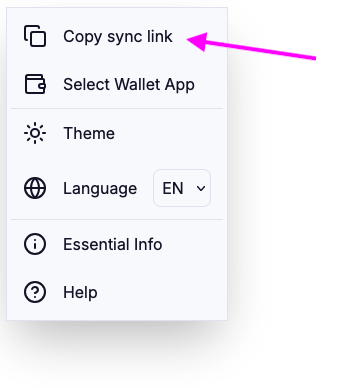
- In the menu (top-left), select “Copy sync link”
- If you can't see the option, refresh your browser or app so you have the latest version of Addresso, and try again
Why no QR code? Scanning a QR code will always open the encoded link in your device’s default browser, and definitely not in a wallet browser for example. We have some ideas for how to improve the sync experience, but don’t be shy if you have an idea too! 🙏🏼
- Open the browser on the device you want to add to sync
- Paste the sync link into the address bar
- If this is on a different device, see Top tips below
- Enter your passphrase when prompted
- If the sync doesn't complete in a few seconds, go back to the source from step 1 to make sure it's alive and kicking.
And now you've synced! 🥳 … But if you’re not, get in touch via Farcaster or Telegram and we’ll sort you out pronto.
Top tips for syncing between devices
If you copy the sync link on one device and need it for another device, then you may find the following info useful.
From an Apple device to an Apple device
If you are logged in to both Apple devices with the same Apple account then you will benefit from Apple’s universal clipboard. Effectively, this means when you copy anything into your clipboard on one of the devices, it’s instantly available to paste on the other device.
Between Windows and Android
Things aren’t quite so easy between platforms, but check out this PC Mag article for some inspiration. Otherwise, you could use an app common to both devices such as Google Docs or a password manager. Or draft an email with the sync link so you can access the draft on the other device.